Getting Started
This page covers the basic steps after a club is first created: from the first look at the SailScores club page to the entry of races. It doesn't aim to cover every option.
Glossary
How terms are used in SailScores.
- Club
- All results in SailScores belong to a club. The elements of scoring are setup at the Club level and can be shared across Series and Races within the club.
- Competitor
- A sailor or boat entered into a race. Sail number is the most commonly used method for entering results, but the alternative sail number and competitor name may also be used in some circumstances.
- Season
- Series and Regattas belong to a Season. Seasons are typically a year long, and Series will repeat each year, in a new Season. The dates of a Season are important: races can only belong to series assigned to a season including the date of the race.
- Series
- A set of races grouped for scoring. Results are recalculated when a race within the Series is edited. Races can be in multiple series. These are the most frequently viewed items in SailScores.
- Race
- A race is a start and results for a group of boats scored against each other. These are the most frequently edited items in SailScores.
- Regatta
- A group of Series for difference fleets that share the same scoring rules and where results will be shared on the same page. Usually only a few days long.
- Scoring System
- Scoring Systems are the instructions to combind multiple races into series results. The most common Scoring Systems are based on the Racing Rules of Sailing Appendix A. Score Codes and Discard rules are setup within a Scoring System. Scoring System calculations, such as tie-breaking, averaging, and totals are defined in a base Scoring System. SailScores supports a number of base Scoring Systems such as Appendix A, Low Point Average, Cox-Sprague, High Point Percent, and others.
- Score Codes
- Often three letters, Score Codes can be entered as race results to indicate special circumstances, such as Did Not Finish, On-Course Start, or Did Not Start. Clubs often set up custom codes or change the calculation of the usual score codes, such as Race Committee duty. Score Codes provide a scoring value as set in the Scoring System assigned to a series.
Prerequisites
Before following the instructions below you should have an account on SailScores.com and completed a request for a SailScores club, after which you'll get an emailed response with instructions on accessing your club's home page.
You should also have a modern web browser. Most functions work well on a phone, tablet or PC. A larger screen can make the initial set-up a little easier as you'll see more details together.
For the quickest setup, be ready:
- Know your club's usual scoring rules: what system is used, what custom codes are defined, and what's the usual discard pattern?
- Have a list of competitors, including sail number, boat class and, optionally, boat name.
- To set up automatic retrieval of day of race weather, know your club's latitude and longitude. (Right-clicking in popular map websites will usually show this.)
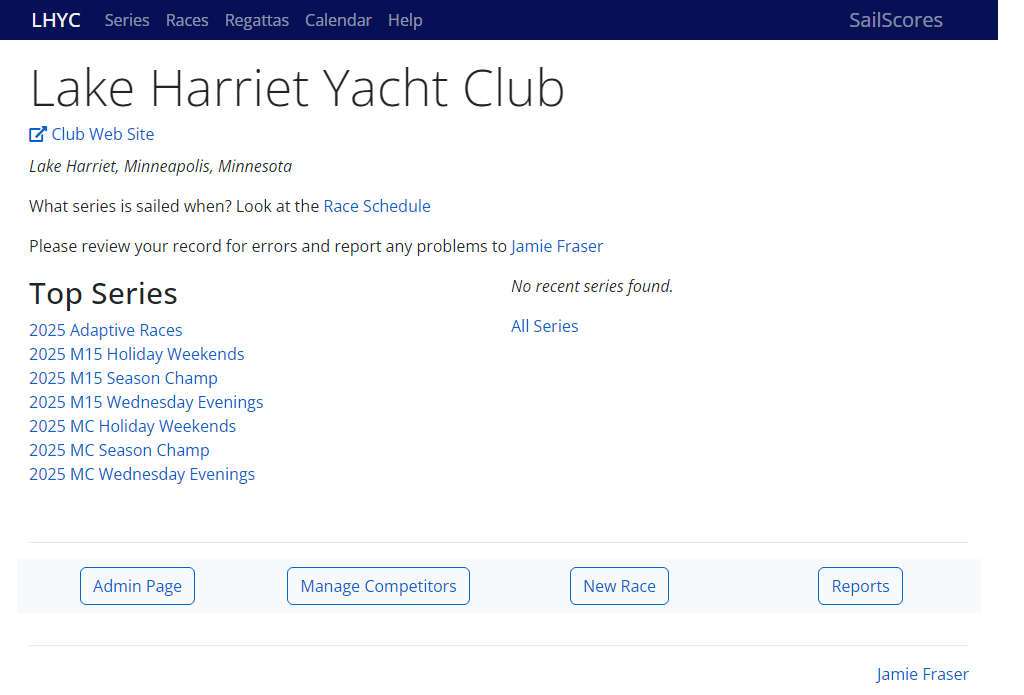
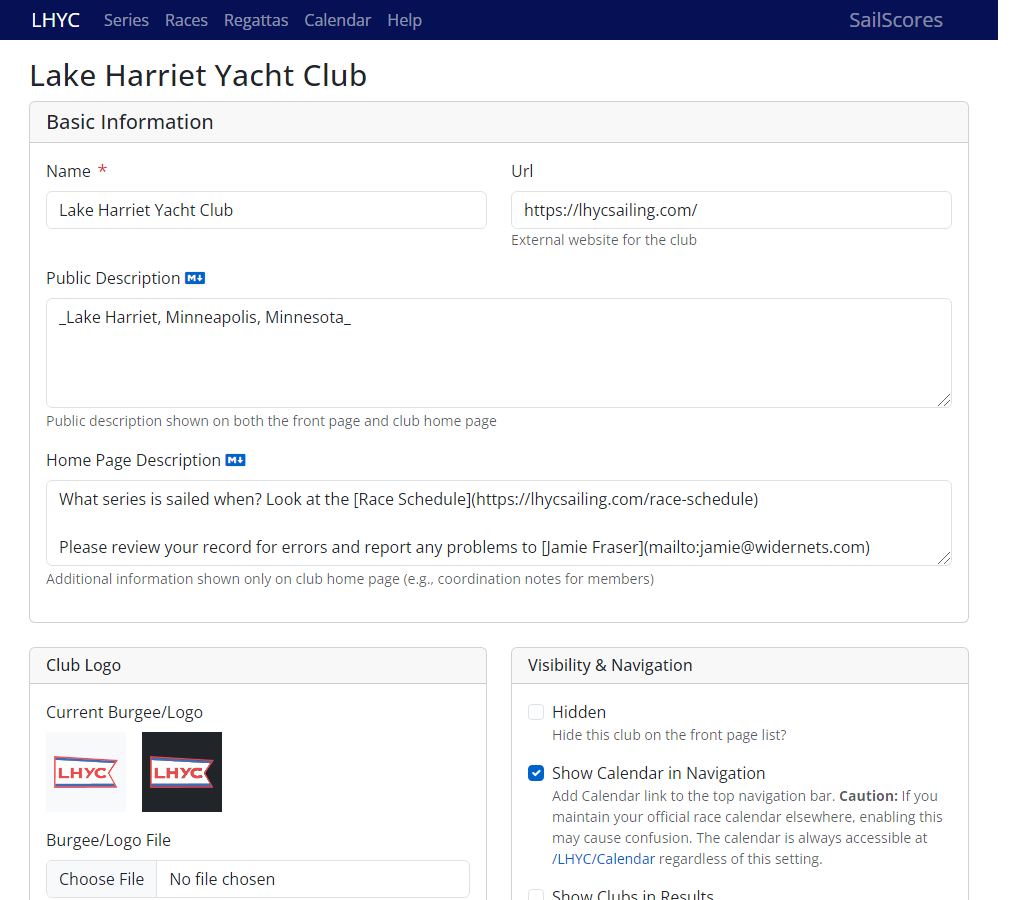
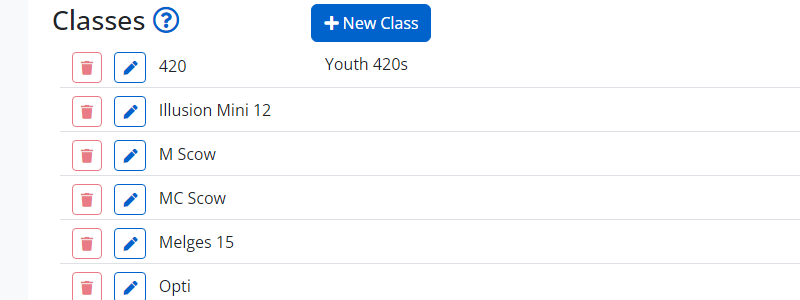
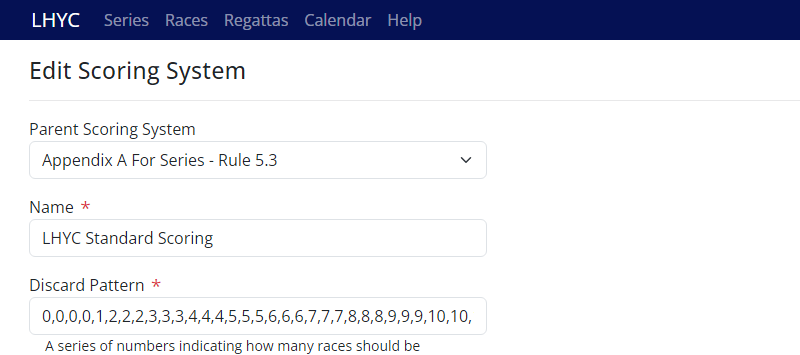
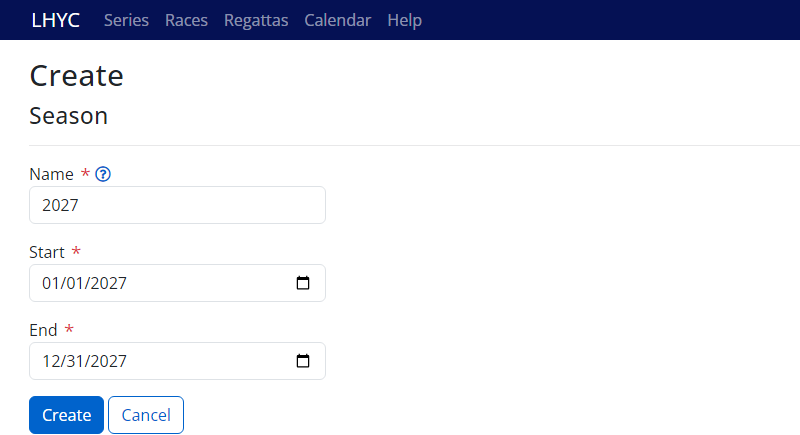
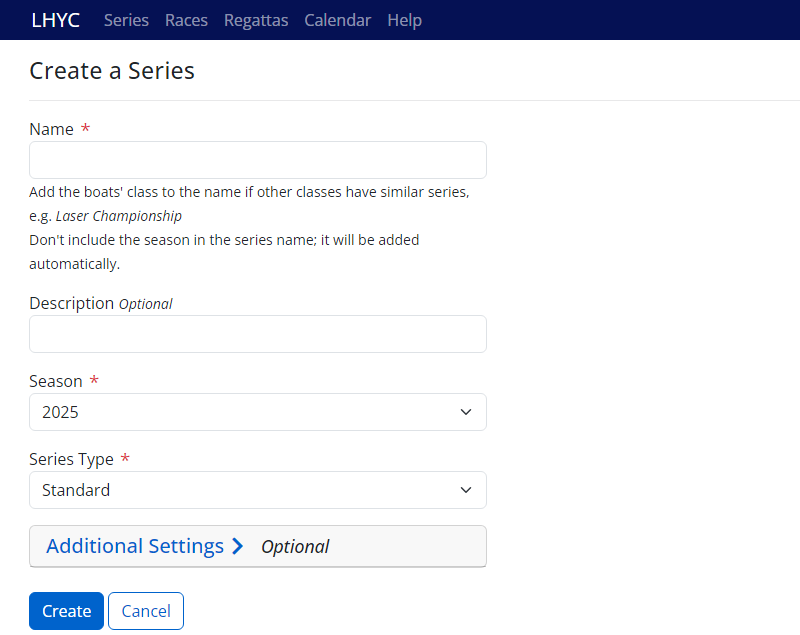
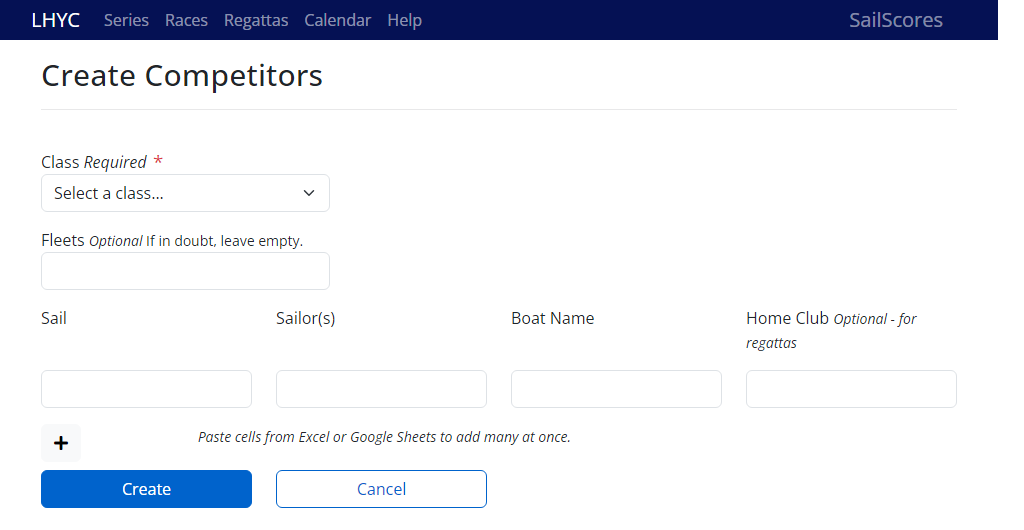
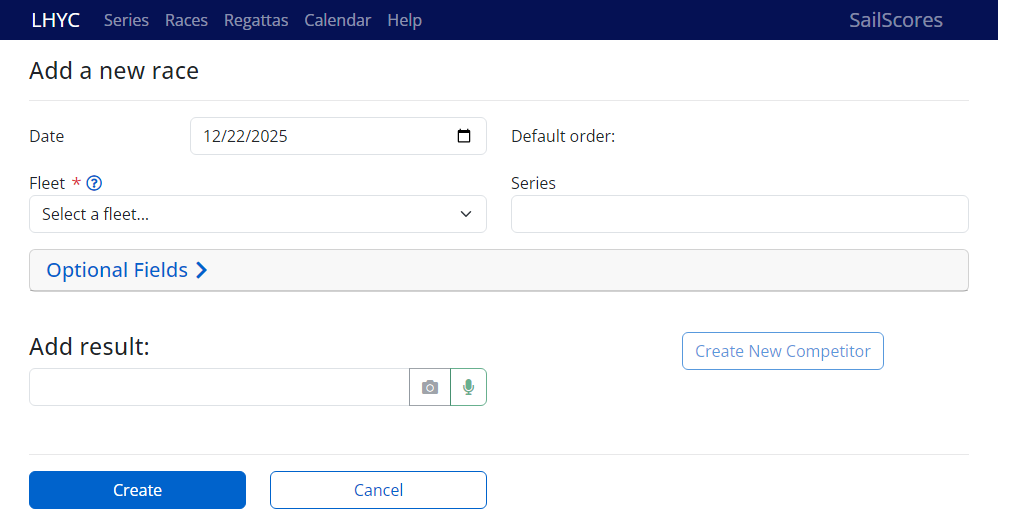
Tip: Whenever you see a icon in the setup pages, you can hover or tap it to find helpful guidance. These tips appear throughout setup and result entry to help you get the best results. The email indicating that your club has been created will include a link to your club's SailScores Home Page. This page is worth bookmarking. It is the starting point for scorekeepers and result viewers. Feel free to share links to other pages, the links should be stable and work for a long time. But if you need one link to share, it will be to the SailScores Club Home Page. This link address ends with your club's initials, and will be the start of other links for your club's results. The club home page has a link to the Club Admin Page where the initial club setup will happen. There are a few settings to confirm when you first get access to a club. These can be changed later, but usually they can be ignored after initial setup. Open the Club Admin page and then click on Edit Club Info. Verify the club name, club URL, and location details. Enter latitude and longitude so that SailScores can get the current conditions for your races. Create the boat classes (e.g., Laser, Optimist, 470) used by your club. Classes filter entries and help gather statistics. Every competitor will be assigned to one class. If you are testing out SailScores, you can skip this and customize the scoring later. Scoring Systems are defined towards the bottom of the Club Admin page. The most common change is to the discard pattern. You can edit it to match your club's published rules. Add any custom scoring codes that your club uses. Set up the recurring items and register competitors so race entry is quick and repeatable. You'll come back to these activities every so often. Every series and regatta in SailScores belongs to a season. Most of the links to your club's results will include a season in the URL, which keeps years of results organized and easy to navigate. Many clubs use calendar years (e.g., “2026”) or hyphenated years in the southern hemisphere (e.g., “25–26”). You can define any date range that fits your schedule. Choose an interval that covers the races in your series; often the same series name will repeat each season. Before entering results, make sure there is a season whose dates cover every race you plan to record. You can always add additional seasons later if your plans change. Create a Season (typically a year) and set the date range. Seasons provide the container for Series and Events and limit how races can be grouped together. Don't worry about making the series longer than your sailing season. The season start and end dates don't get displayed on the site. For a club that sails during the Northern summer, set the season dates to January 1 to December 31, even if there are never races in winter. Create Series (weekly league, summer series, regatta series). For now, leave the Series Type set to Standard. Summary Series can automatically roll-up other series results into a aggregated score. But you'll need to have Standard Series before you can use those. Under Additional Settings there are a few options for series, but you can keep the defaults if you want to get up and going quickly. Note: When a series is deleted the races in it won't be removed. You can add them to another series. There are a few ways to get to competitor page. Once there, use the Create button to open a page that allows the creation of many competitors at once. You can paste columns from a spreadsheet into this page if you maintain these lists elsewhere. The setup means races can now be created and scored quickly. Open your club page and click "New Race". The race editing pages have four different methods to add finishers. All of them are fast. The fastest depends on the fleet size and the scorekeeper's preferences.Step 1 — Make yourself at home
Step 2 — One Time Club Configuration
Confirm General Club settings
Add Classes
Confirm Scoring System
Step 3 — Recurring Series and Competitor Setup
Understanding seasons
Season setup
Series setup
Competitor setup
Step 4 — The Goal: Quick, Easy Race Entry
Other Getting Started Guides